

Product
January 7, 2026
Prompt Input-Form

# Upcoming
Launching: May 26

Blake Portmann
What is it?
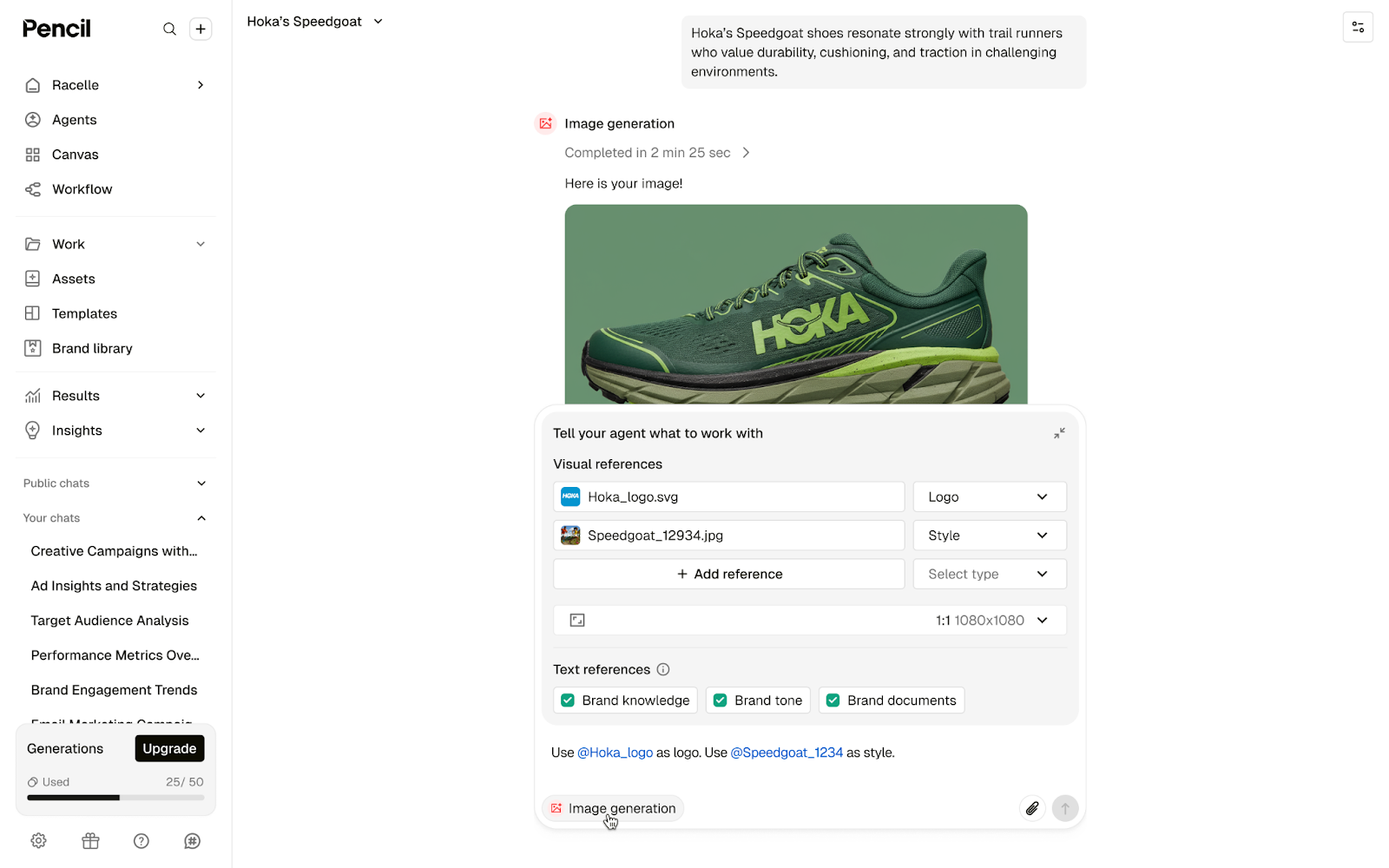
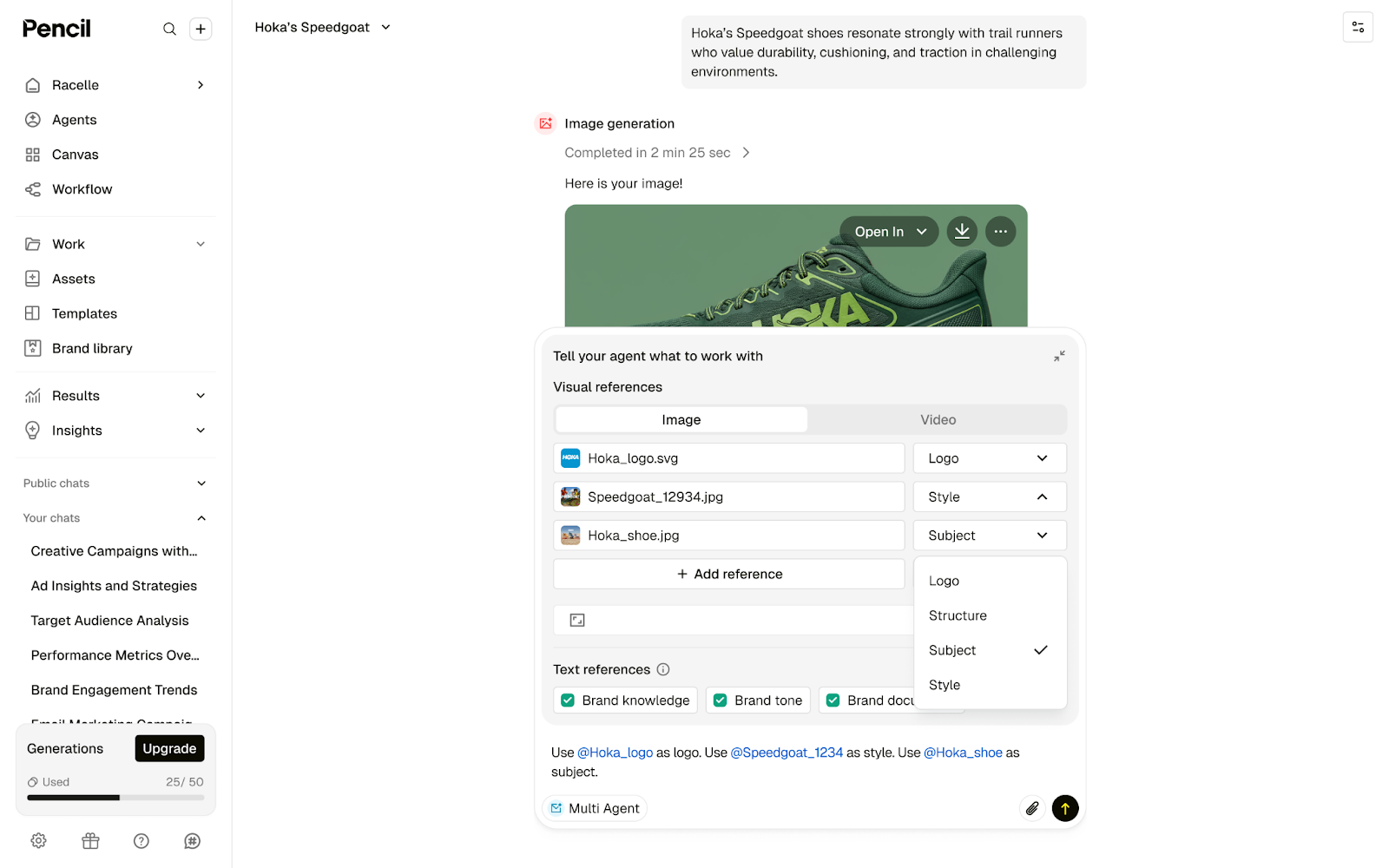
The Prompt Input-Form is a model-aware form that sits alongside the chat. It allows users to attach visual & text references to an Agent and explicitly define their role (e.g., "This is a Logo," "This is a Style Reference," "This is a Start Frame"). It also allows users to set specific aspect ratio and duration.
Why did we build it?
Prompting is hard. Users often attach images hoping the model "just gets it," but models frequently misinterpret inputs (e.g., confusing a logo for a style reference). By adding structure, we eliminate the guesswork, ensuring higher quality, on-brand results with fewer retries.
The User Experience (How it Works)
Step 1: The Form
The form appears as a lightweight panel next to the chat window. It is optional but highly recommended for complex tasks.
Step 2: Structured Uploads
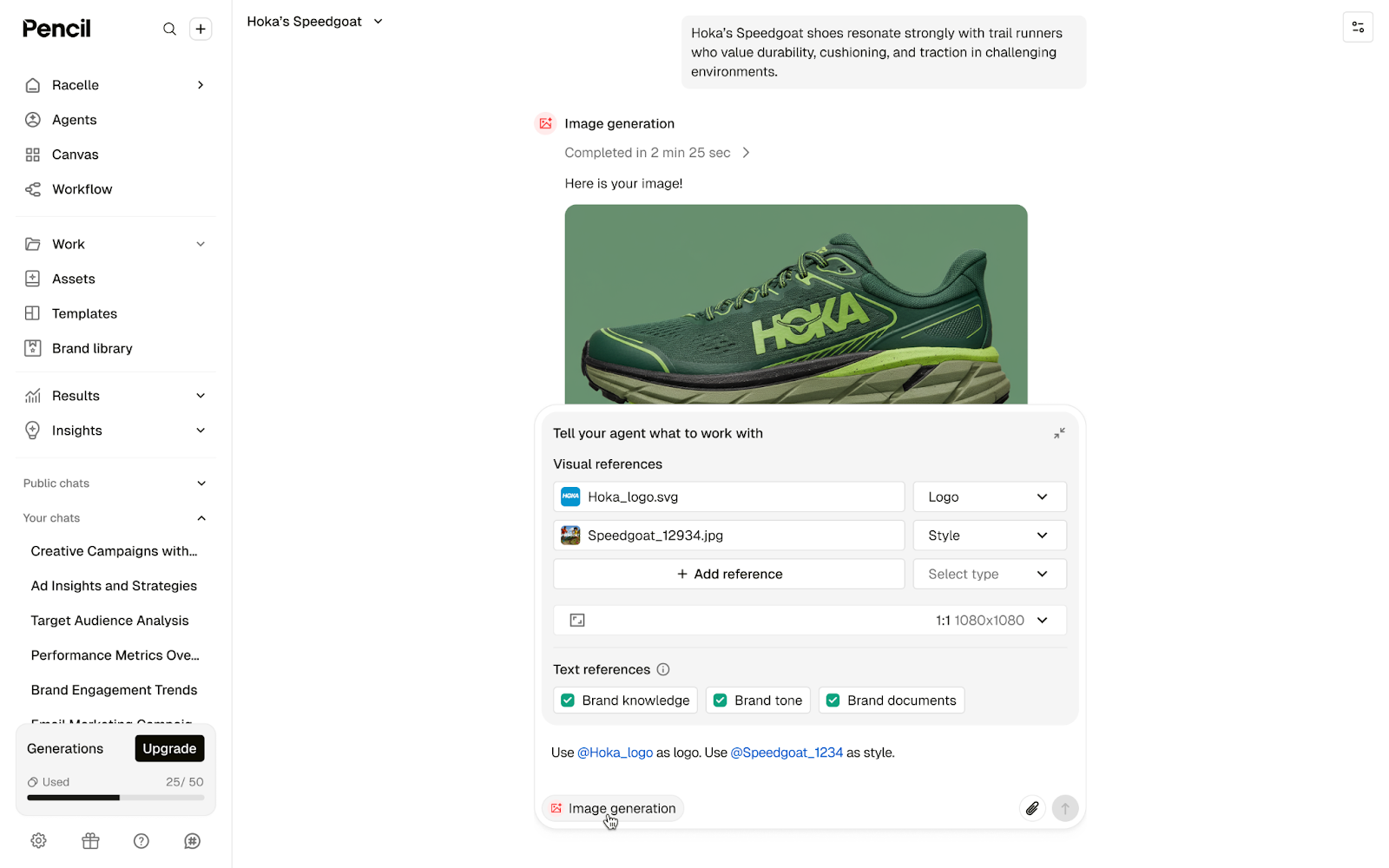
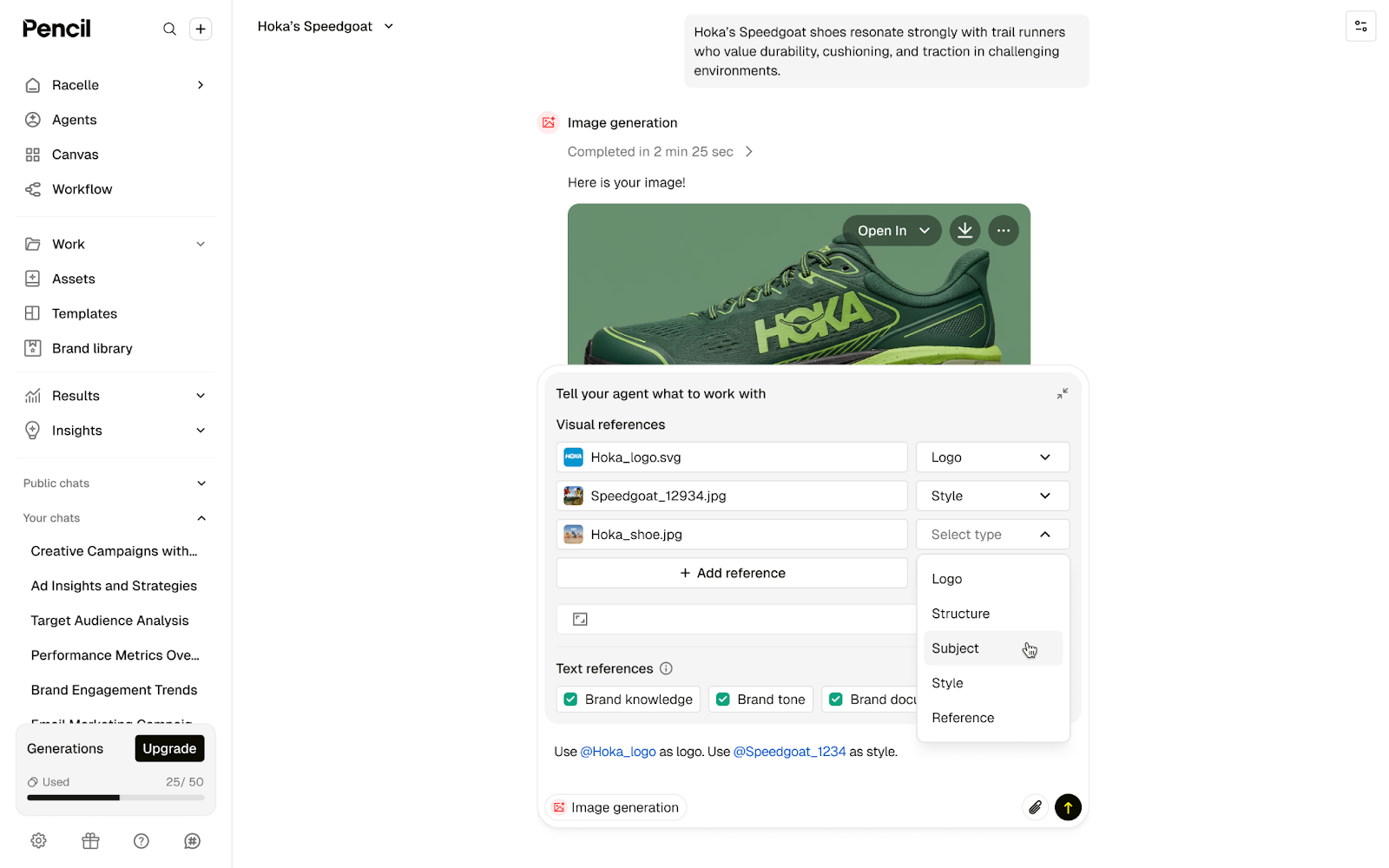
Instead of attaching an image into the chat blindly, users upload it and mark it as specific type.
- Example: A user uploads a company crest. Instead of just attaching it, they select the type "Logo." The model now knows exactly how to handle those pixels.
Step 3: Tagging (@mentions)
This is a key workflow improvement.
- Action: When a user uploads a visual asset to the form or attaches via attachment.
- User Control: User can do @ and then reference the asset anywhere in the chat e-g @[asset_name] as Logo.
- Benefit: This will help user reference attachment according to need.
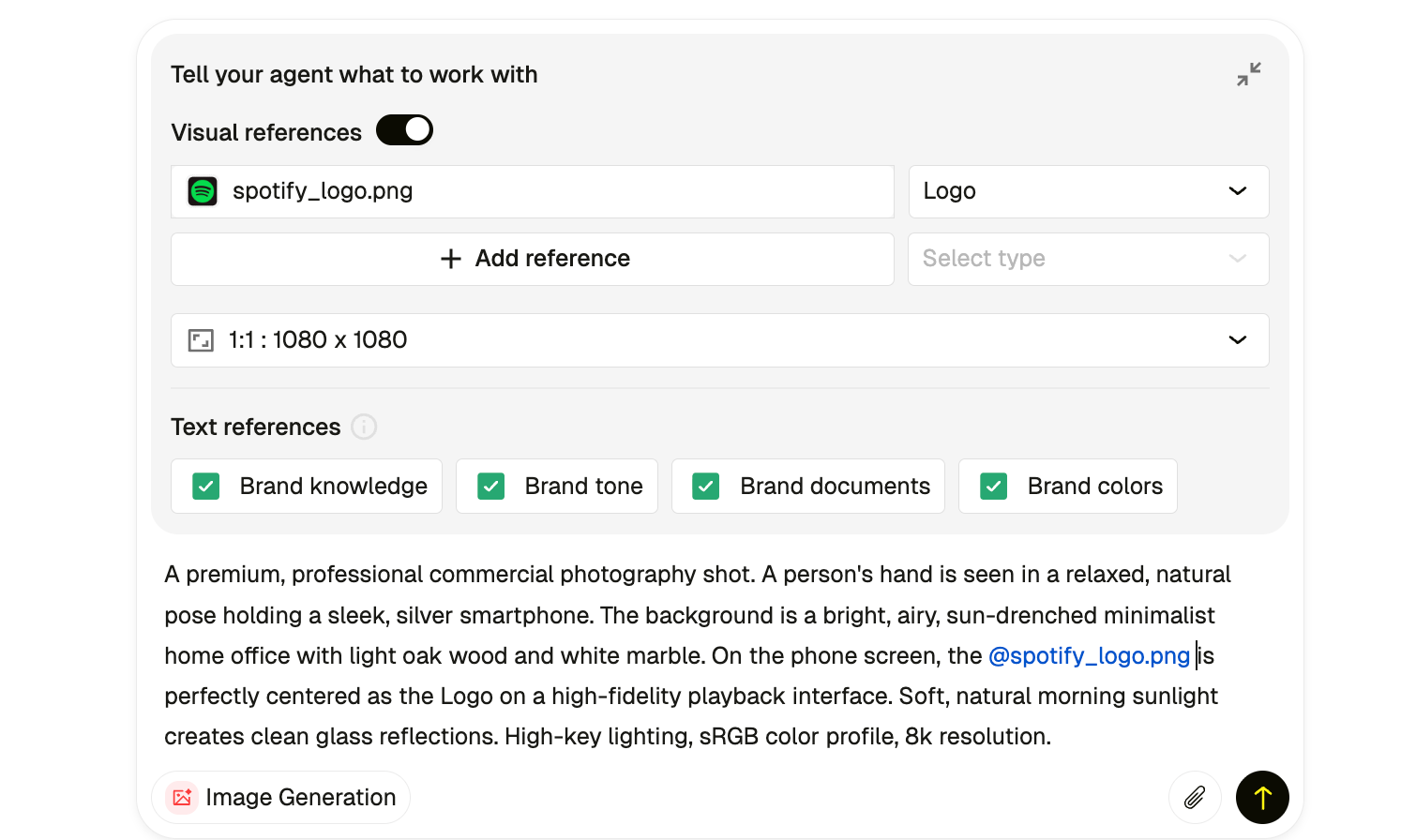
Step 4: Brand Library Defaults
To speed up workflows, if the Agent supports it, the form will launch with 1 Default Logo and 1 Default Style Reference pre-loaded from the user's Brand Library.
3. Capability Matrix (By Model)
Critically Important for Support & Success Teams: The form is "Smart"—it changes based on the model the Agent is using. Users may ask, "Why can't I upload a style reference?" The answer depends on the model.
A. Image Generation Models
Model Family | Examples | Capabilities (What the user sees) |
Full Support | OpenAI GPT Image 1, Nano Banana 2.5 and Pro | All Inputs Open. Users can tag Logo, Style, Structure, Subject, or General Reference. |
Restricted Support | Adobe Firefly V4 | Strict Limits. Users can add max 1 Style and 1 Structure reference. All other slots are not available. |
No Visual Support | Imagen 4 Ultra, Imagen 3, Bria 3.2 | Text Only. There will be no visual reference in the form. Users can only describe references via text. |
B. Video Generation Models
Model Family | Examples | Capabilities (What the user sees) |
Standard Control | Runway Gen-3, Veo 2, Veo 3, Firefly Video | Start & End Frames. User can define how the video starts and ends. |
Start Only | Sora 2, Sora 2 Pro, Runway Gen-4 | Start Frame Only. The "End Frame" option is hidden. |
The "Veo 3.1" | Google Veo 3.1 | Either/Or Logic. The user must choose either Frames (Start/End) OR References (Style/Logo/Structure/Reference). They cannot mix both. Agent will be able to use one at a time due to support on model API. |
4. Hybrid Agents (Image + Video)
If an Agent has tools for both Image and Video generation, the form splits into two tabs.
- Tab A: Image: Shows image-specific input (Logo, Structure, etc.) depending on the model selected for the image tool added to the agent
- Tab B: Video: Shows video-specific inputs (Start Frame, End Frame, Logo, Reference) depending on the model selected for the video tool added to the agent.
Key User Behavior:
- Independent States: Items uploaded to the "Image" tab automatically copy over to the "Video" tab but with an unselected type so the user can decide the type. This is intentional to prevent model confusion.
5. FAQ & Troubleshooting Scenarios
Q: A user says the "Visual Reference" section is missing.
A: They are likely using a model that does not support image inputs (e.g., Google Imagen 3 or Bria 3.2). Advise them to switch to a GPT or Gemini-based models if they need visual references.
Q: A user is experiencing that reference types are being removed when trying to add a Start Frame in Veo 3.1.
A: Check if they have a "Style Reference" or "Logo" attached. Veo 3.1 is mutually exclusive, it cannot handle Control Frames and Style References simultaneously. They must remove the Style Reference to add the Start Frame.
Q: What happens if a user switches models?
A: The form updates dynamically.
- If they switch from a "Full Support" model to a "Restricted" model, unsupported inputs will be hidden.
Q: Do these inputs carry over to the next session?
A: Inputs persist for the active Agent chat session. If they start a brand new chat, they will reset to the Brand Library defaults.
Comments (0)
Popular

Popular
Dive in