

Brief Mode

# Live
New Feature Launches through June 2026
February 24, 2026June 23, 2026 Update
Update 1: Multi-Stage Approval Workflows Are Live
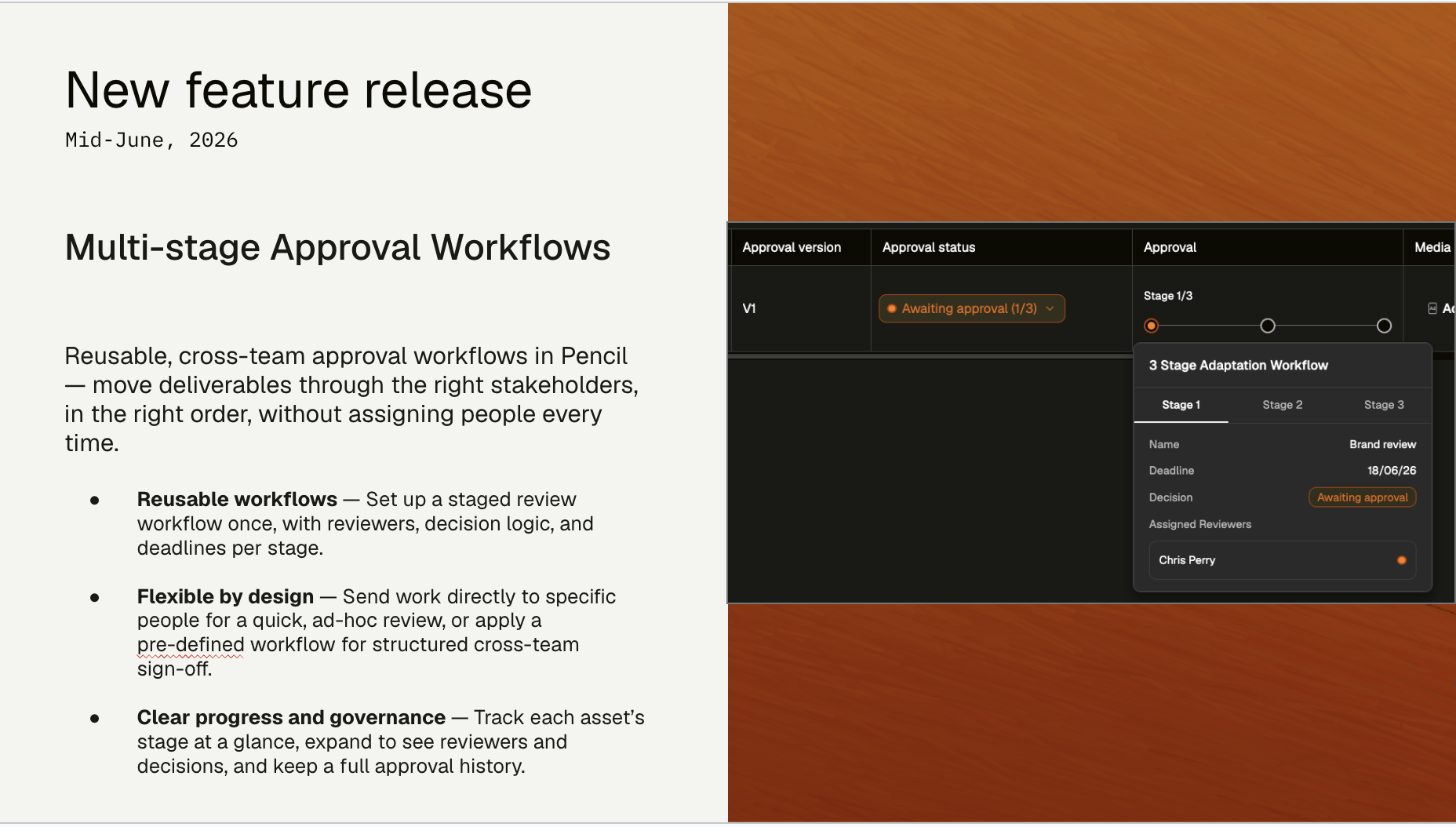
Configurable multi-stage approval workflows are now live. You can set up reusable, cross-team review workflows (e.g. Brand → Legal → Compliance) and apply them to items needing review, rather than manually assigning reviewers each time. You'll be able to track each item's stage, see who's approved or requested changes, and view the full approval history for governance.
Of course, not every review requires the full process. You can still assign specific reviewers directly whenever you need more flexible, ad-hoc reviews. We've created two videos covering both how to configure these workflows in the platform and how to apply them in practice. One important note: this functionality is also available directly through the Canvas, so you'll have access to the full approval experience regardless of whether you're managing briefs.
Experiencing slow loading?
Download
the file to view.
May 22, 2026 Update
Update 1: Introducing Send for Review from Canvas
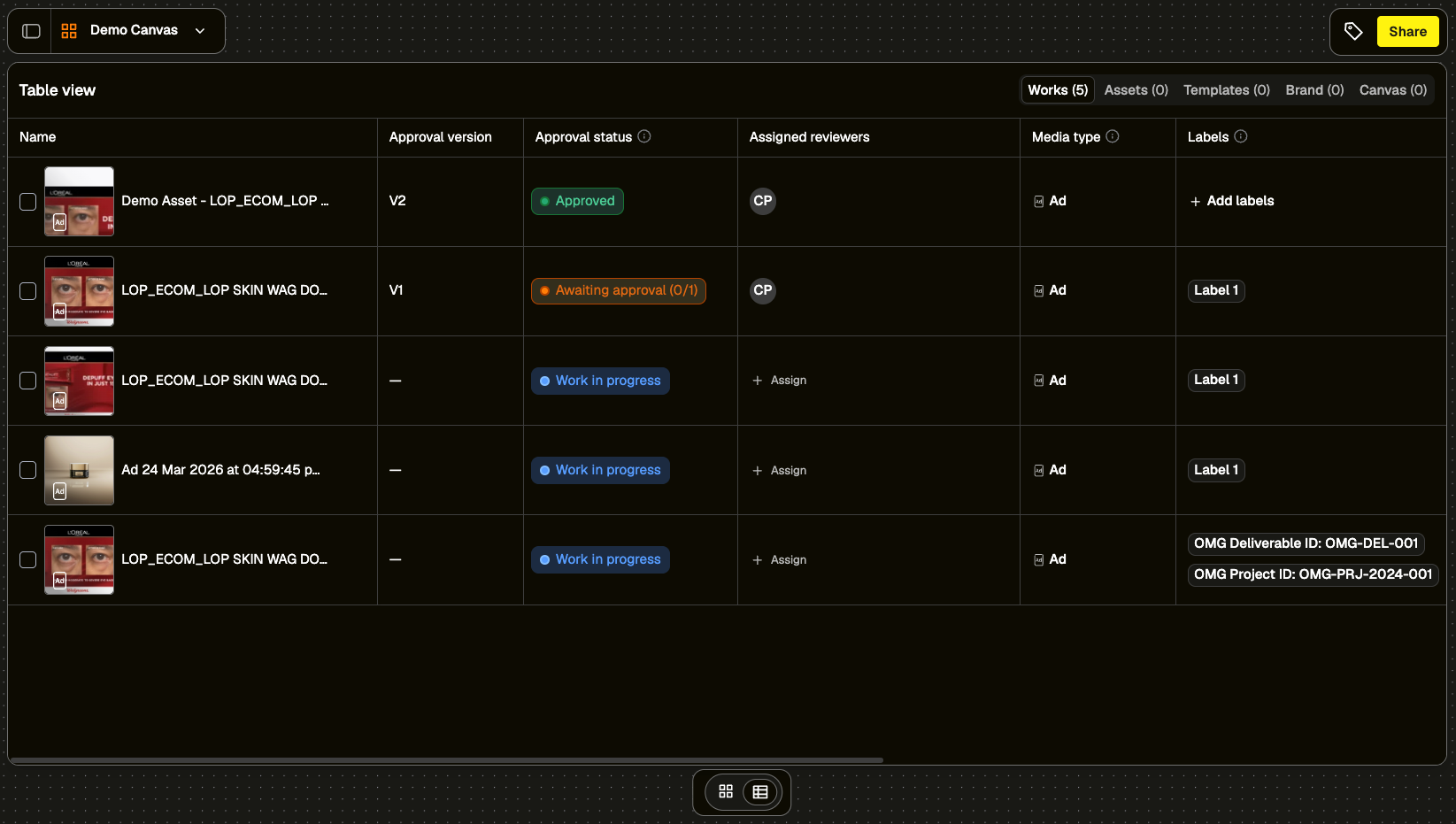
We’re introducing the ability to send items for review directly from the Canvas, bringing approvals into the place where content is already being created, managed, and refined.
Previously, users had to add a Work item to a brief-connected Canvas so it appeared as a deliverable in Brief Mode. From there, they had to switch back to the brief, open the Deliverables tab, and start the approval flow. This worked, but it added extra steps and made approvals feel separate from the creative workspace.
With this update, teams can send work for review directly from the Canvas, manage reviewers through the approval preview, and transition through review cycles without jumping between Canvas and Brief Mode.
It also means approvals are no longer dependent on a brief connection. Whether work is tied to a brief or created directly on a standalone Canvas, teams now have a simpler, more flexible path from creation to review.
What’s new
- Send for review directly from Canvas - Users can now initiate review directly from the Canvas.
- Removed brief dependency - Items can be sent for review on a Canvas, even without a connected brief.
- Send for review option - ‘Send for review’ action has been added directly into the menu for Canvas items.
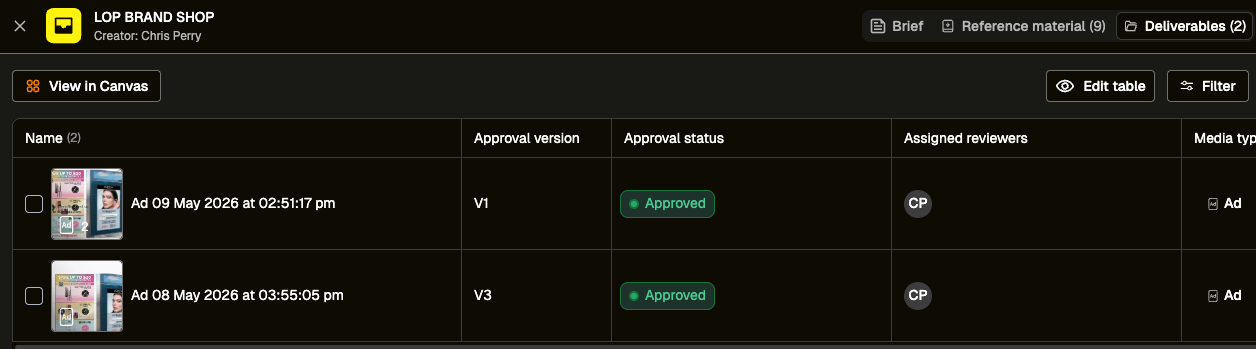
- Approval overviews - Switch to the Table view on the Canvas to see approval status, approval version and assigned reviewers.
Why it matters
- Creates a more complete Canvas workflow - Canvas now supports a more connected progression from creation to approval.
- Reduces operational friction - Teams can trigger approvals from where they are already managing and iterating on work, reducing unnecessary navigation and duplicated actions.
- Supports standalone approval - Reviews can now be managed independently of Brief Mode, supporting teams that work directly from Canvas.
What’s next
- Multi-stage approval workflows — More control over review stages and handoffs.
- Enhanced annotation tools — More methods for drawing annotations, e.g. boxes, circles, text highlighting and more.
- Brief context in Preview — View key brief context within the approval view to help ensure content is fit for purpose.
Who it’s for
- Creative teams
- Designers and content creators
- Marketing and brand teams
- Reviewers and approvers
- Agencies and production teams
What this unlocks
Sending items for review directly from Canvas connects creation and approvals into a more seamless workflow—allowing teams to progress work, notify reviewers, and move content through approval stages without leaving the creative workspace where the work is happening.
Give it a try and let us know what you think! 🚀
Update 2: Introducing Revision Requests for Briefs
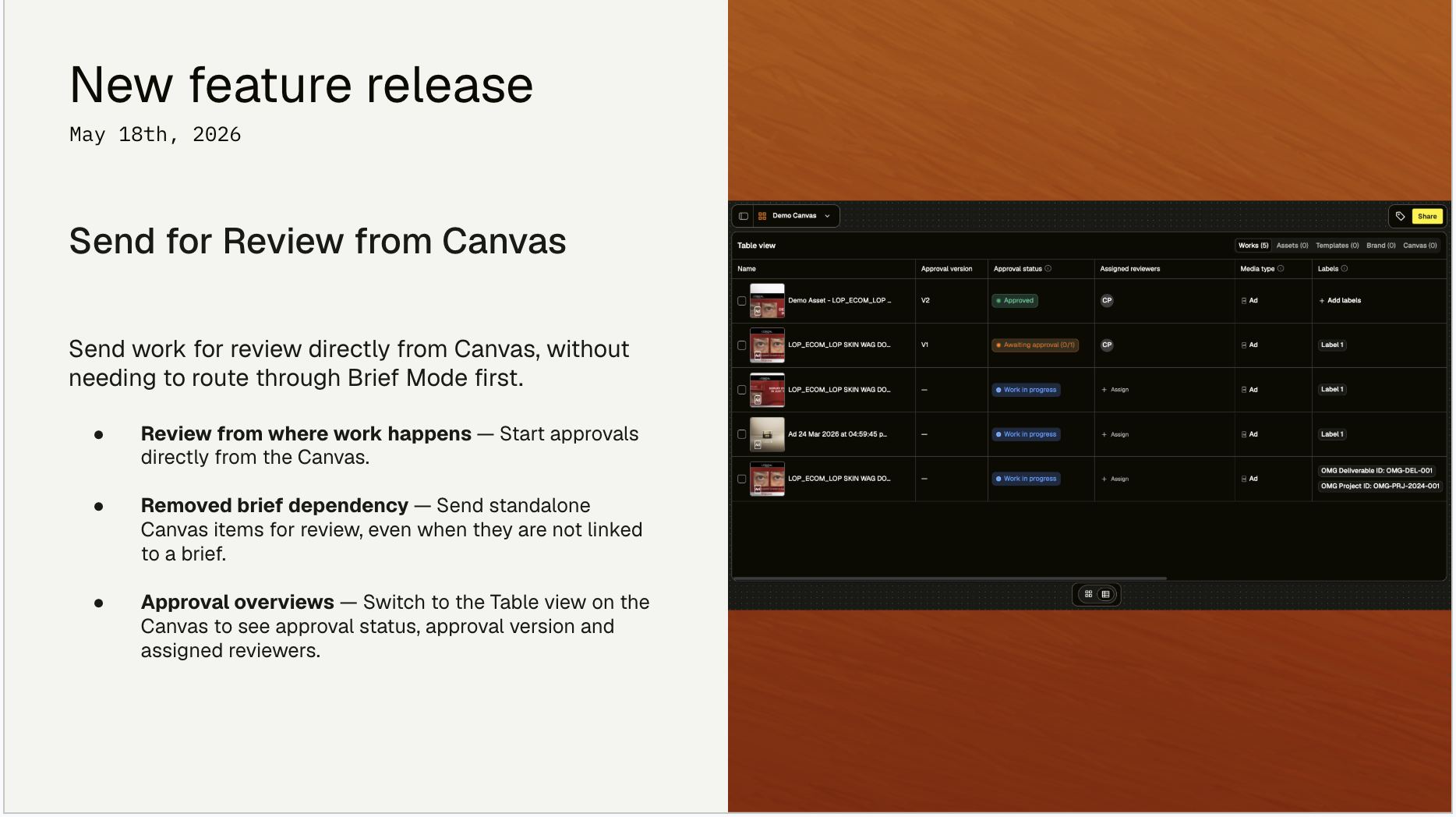
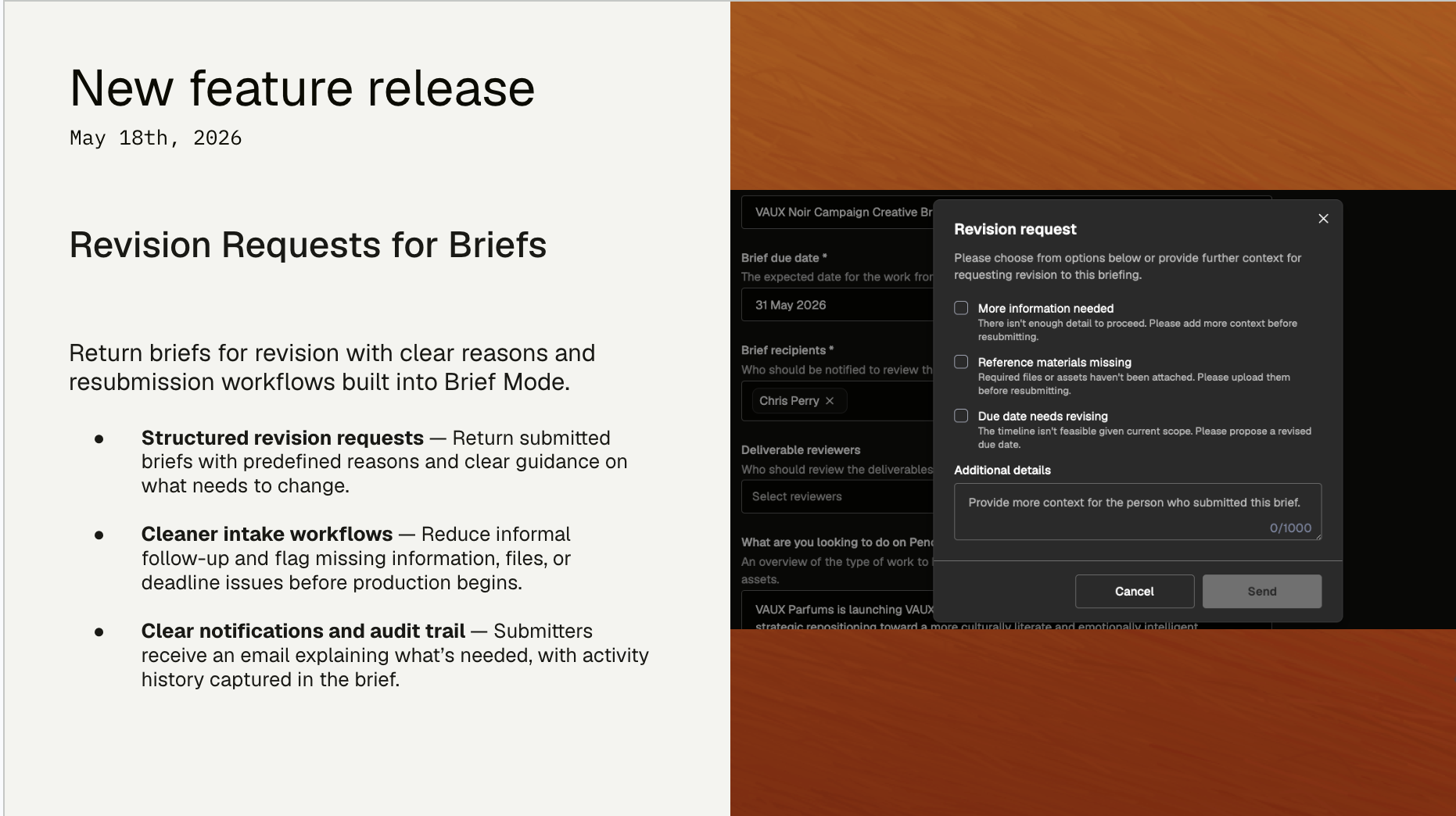
We’re introducing Revision Requests for Brief Mode, giving Pencil users a structured way to return briefs that are not yet ready to move into production.
Teams often had to manage this informally through comments, messages, or manual follow-up outside the product. The brief itself would still appear as Submitted, making it unclear to both sides that updates were required before work could begin.
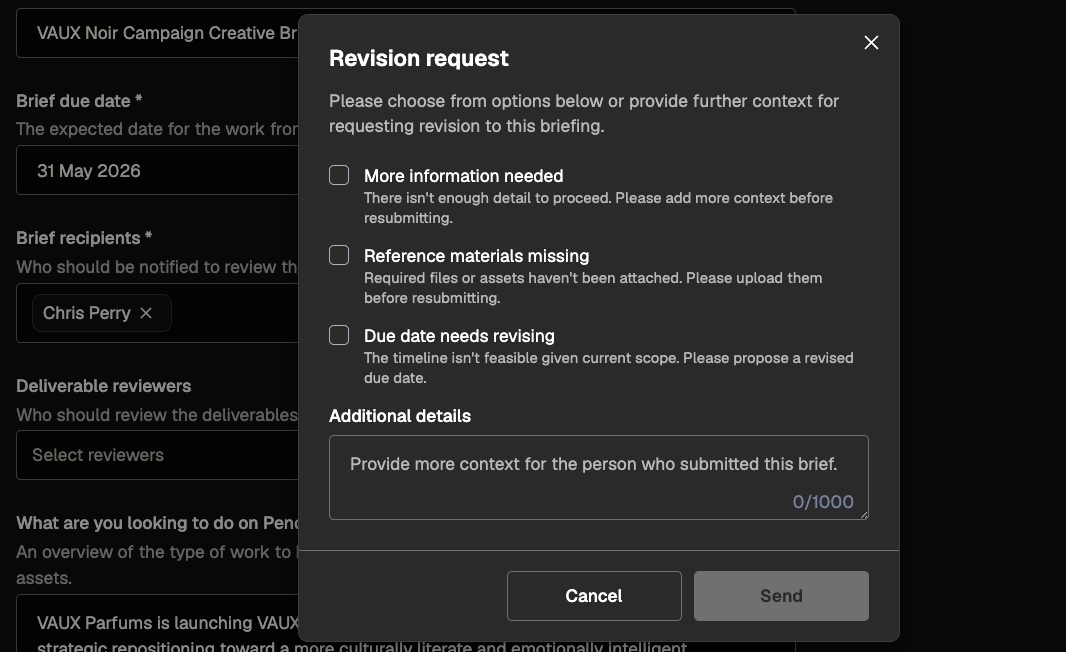
With this update, Pencil users can now select a dedicated Revision request action directly from submitted briefs. This moves the brief into a new Revision status, returns it to an editable state, and gives requesters a clear path to update and resubmit their work.
By introducing structured revision reasons, activity history, and notifications, Brief Mode now supports a much clearer revise-and-resubmit workflow between clients and delivery teams.
What’s new
- Request revisions with clear context — Pencil users can return submitted briefs for revision and select pre-defined reasons, with optional guidance on what needs to change.
- Dedicated Revision status — Briefs move into a clear Revision state so requesters know updates are needed before production can begin.
- Editable and resubmittable briefs — Once a revision is requested and the issues have been addressed, the brief can be resubmitted.
- Clear notifications and audit trail — The brief submitter receives an email explaining why revisions are needed, while activity history keeps both sides aligned on what changed and why.
Why it matters
- Creates a clearer intake workflow — Incomplete briefs can be returned with structured reasons instead of informal follow-up.
- Reduces avoidable back-and-forth — Missing information, files, or deadline issues can be flagged before production begins.
- Keeps both sides aligned — Submitters receive an email with what needs to change, while activity history preserves the audit trail.
Who it’s for
- Marketing and brand teams
- Creative and production teams
- Agencies and delivery teams
- Strategists and project managers
What this unlocks
Revision Requests create a more structured and transparent review workflow for briefs—helping teams identify gaps earlier, reduce avoidable back-and-forth, and move briefs into production with greater confidence.
Give it a try and let us know what you think! 🚀
May 11, 2026 Update
Update 1: Introducing Separate Approval Versioning
We’re introducing Separate Approval Versioning, a new way to clearly distinguish between internal creative progress and client-facing review versions in Pencil.
Today, version history is tied directly to the underlying work item, meaning internal edits and saves are exposed during review. This can create confusion around which version is actually being reviewed, make iteration appear inefficient, and blur the line between work-in-progress and approved output.
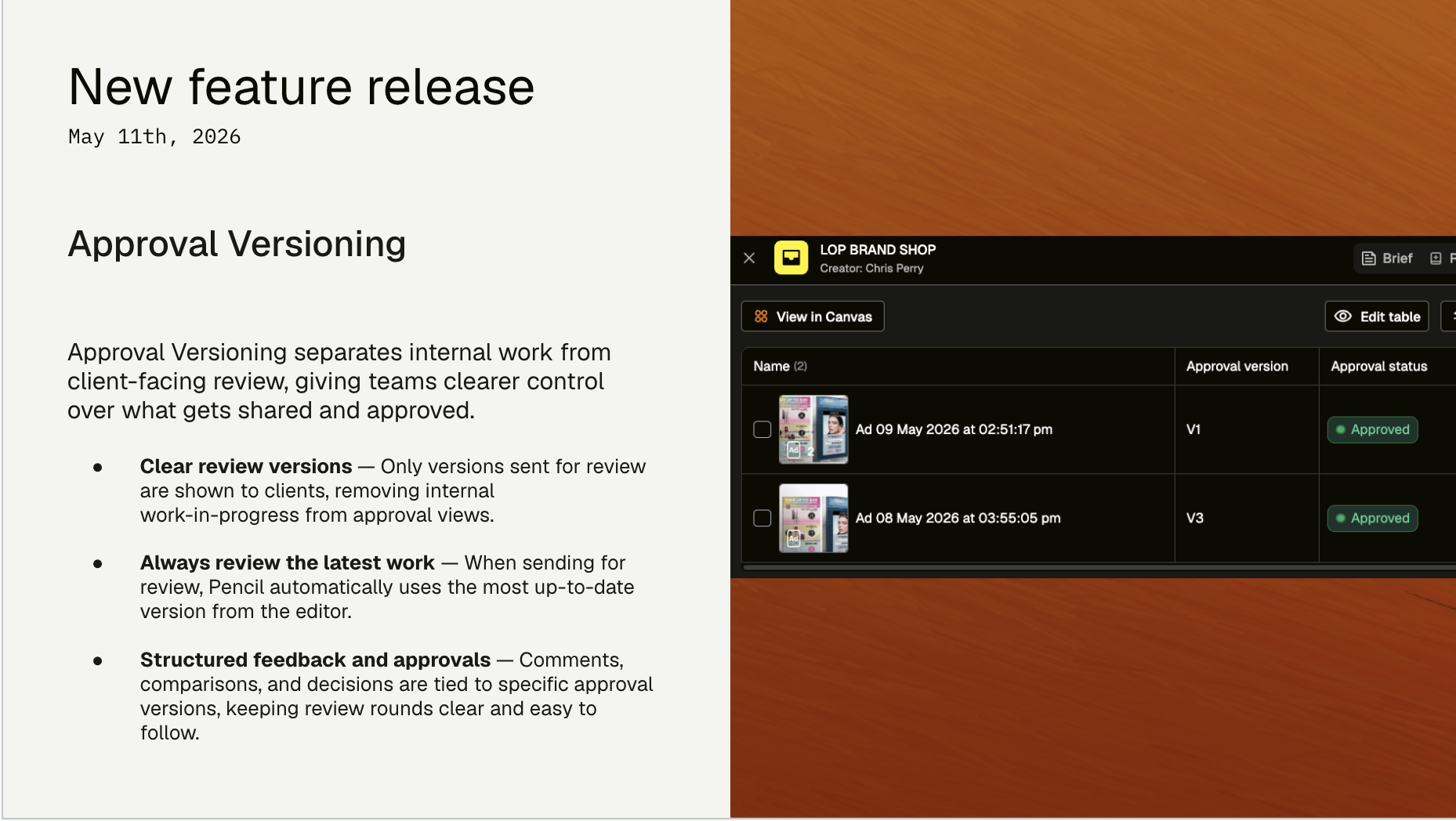
Separate Approval Versioning introduces a dedicated approval version system that only updates when a deliverable is explicitly sent for review.
This creates a clearer, more reliable review experience, ensuring clients and reviewers only see the versions that matter.
What’s new
- Separate approval version history — Deliverables now use a dedicated version sequence (Version 1, Version 2, etc.) that only updates when sent for review
- Clean client-facing versioning — Internal editor saves are no longer exposed in approval views
- Consistent review experience — Brief Mode, Canvas Preview, and My Approvals now all reflect approval versions only
- Always review the latest work — When sending for review, the most recent internal version is automatically used
- Clear review state handling — If a deliverable is edited during approval, it returns to Work in progress to prevent outdated approvals
- Version-specific comments — Feedback is tied to each approval version, keeping review rounds clear and traceable
- Meaningful version comparison — Compare functionality now works across approval versions only
- Improved canvas visibility — Canvas tables now show approval version, status, and assigned reviewers for each deliverable
Why it matters
- Removes confusion in approvals — Reviewers only see versions intended for review, not internal working iterations
- Improves clarity for clients — Clean version numbering makes it clear what’s being reviewed and approved
- Protects review integrity — Prevents outdated versions from being approved after new edits are made
- Keeps feedback structured — Comments stay tied to specific review rounds, improving traceability
- Aligns production and review workflows — Internal iteration and external review are now clearly separated
What’s next
- Multi-stage approval workflows — More control over review stages and handoffs
- Enhanced annotation tools — More methods for drawing annotations, e.g. boxes, circles, text highlighting and more
- Brief context in Preview — View key brief context within the approval view to help ensure content is fit for purpose
Who it’s for
- Designers and production teams
- Clients and reviewers
- Project managers and delivery teams
- Agencies and cross-functional teams
What this unlocks
Separate Approval Versioning creates a clearer boundary between internal creative work and external review, making approvals easier to understand, feedback more meaningful, and delivery more reliable.
Give it a try and let us know what you think! 🚀
Loom Link
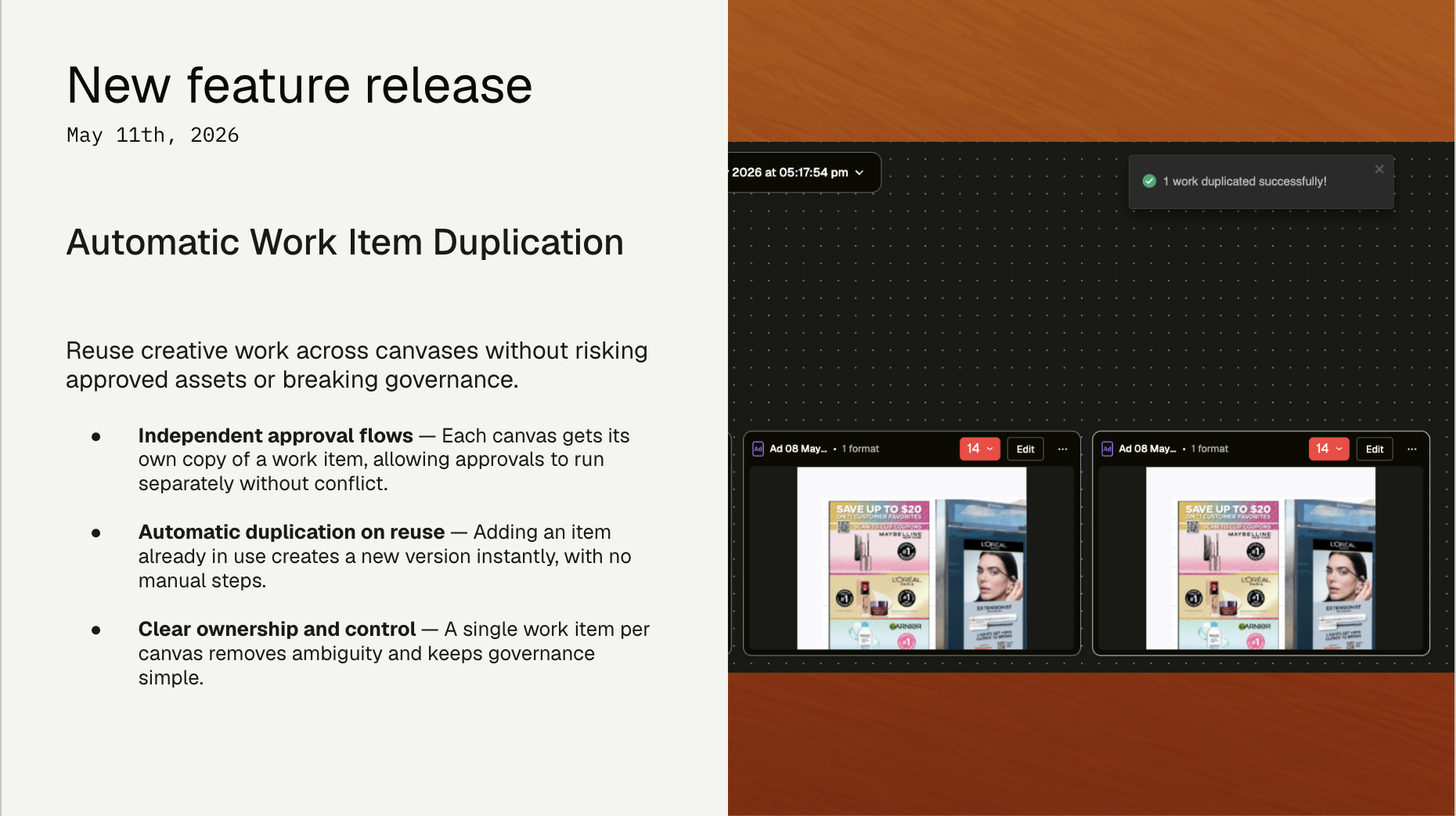
Update 2: Automatic Work item duplication across Canvases
We’re introducing Automatic Work Item Duplication, a new way to safely reuse creative work across multiple canvases in Pencil while protecting approved outputs.
When a work item has been approved, it’s important that it remains consistent and unchanged. If that same item is reused and edited across different canvases, it can lead to approved assets being unintentionally modified, creating inconsistencies and breaking approval governance.
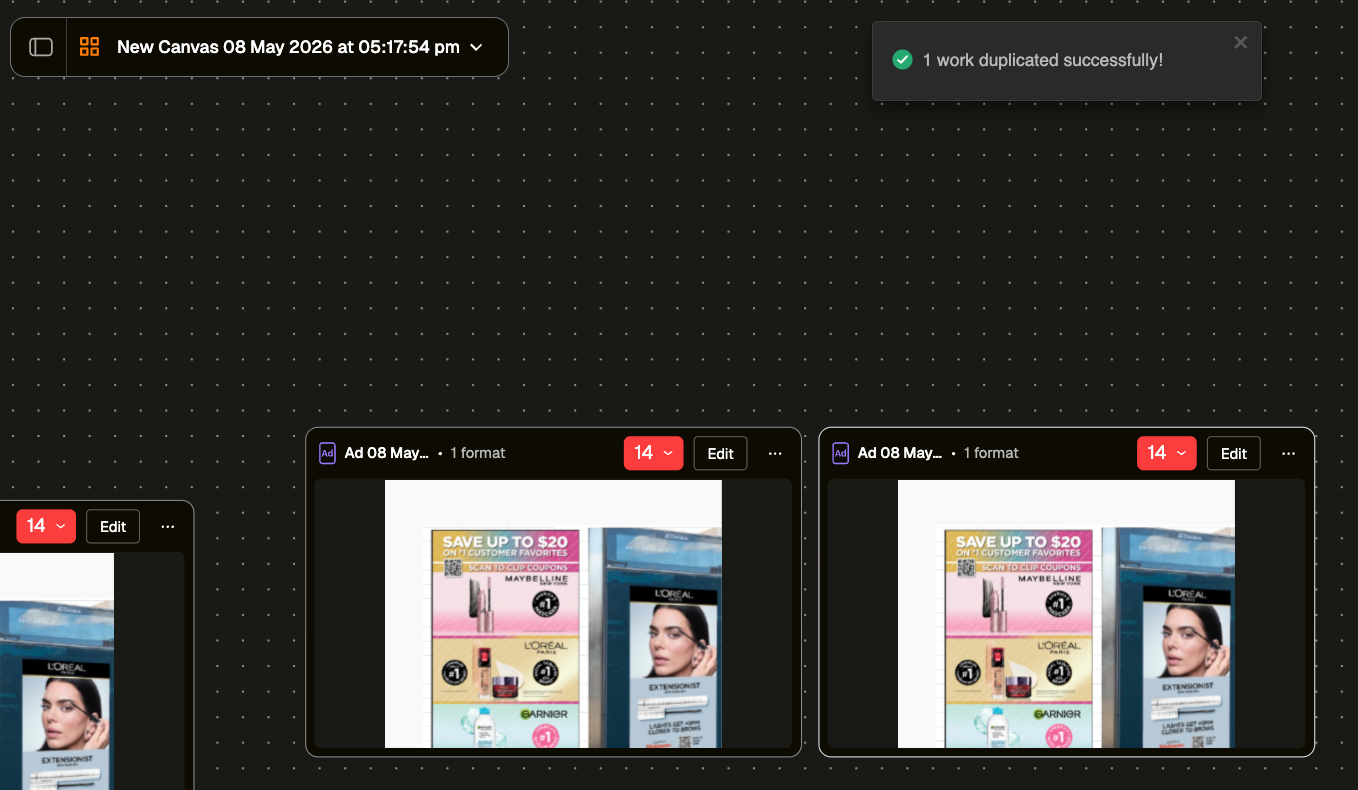
Automatic Work Item Duplication ensures that when an existing work item or template is reused across multiple canvases, a new independent version is created—so teams can continue working flexibly without impacting approved content.
What’s new
- Automatic duplication on reuse — When adding a work item or template that already exists on another canvas, Pencil automatically creates a duplicate
- Clear duplication confirmation — A confirmation message makes it clear when a duplicate has been created
- Clear canvas ownership — Each work item or template belongs to a single canvas, removing ambiguity around work and canvas association
- Reuse latest state — Duplicates are created from the latest version, ensuring teams always start from the most up-to-date work
Why it matters
- Protects approved work — Prevents approved assets from being unintentionally edited when reused
- Maintains approval integrity — Ensures approval history and outputs remain consistent
- Removes confusion around ownership — Each item clearly belongs to one canvas
- Improves auditability — Clear traceability of where work originated from
What’s next
- Send work for review from Canvas — Ability to send work items for review from the Canvas, allowing approvals to be independently managed in the Canvas itself without a connected Brief.
Who it’s for
- Designers and creative teams
- Production and delivery teams
- Agencies and cross-functional teams
What this unlocks
Automatic Work Item Duplication ensures that reuse doesn’t compromise approval integrity—allowing teams to move faster while keeping approved outputs consistent and protected.
Give it a try and let us know what you think! 🚀
LOOM LINK
Update 3: Introducing locking further edits on approved Work items
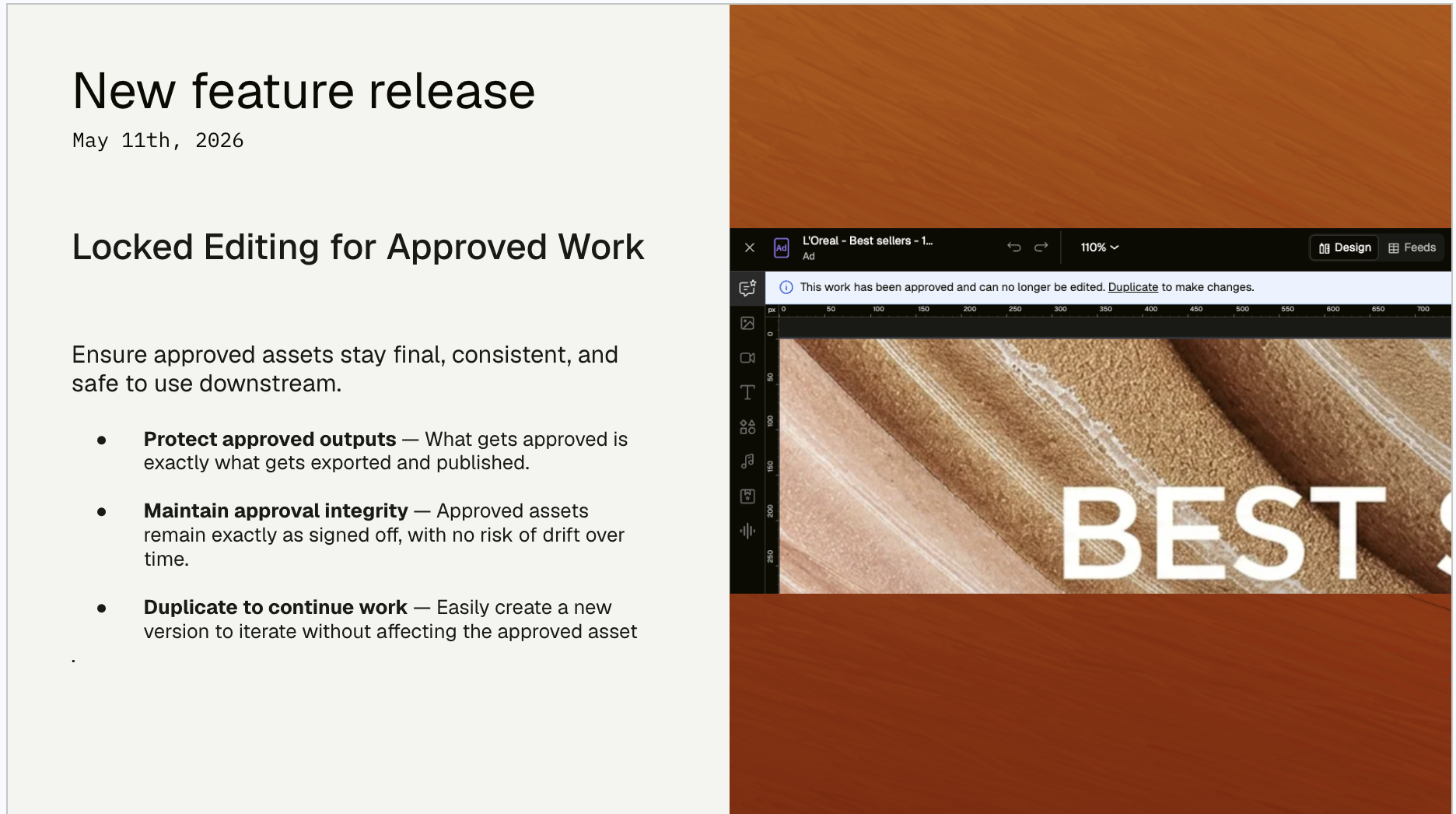
We’re introducing Locked Editing for Approved Work Items, ensuring that once a deliverable has been approved, the underlying work remains stable, consistent, and safe to use downstream.
In many workflows, approval represents a formal milestone — but previously, approved work items could still be edited. This created risk that approved assets could change after sign-off, leading to inconsistencies between what was approved and what was ultimately exported or published.
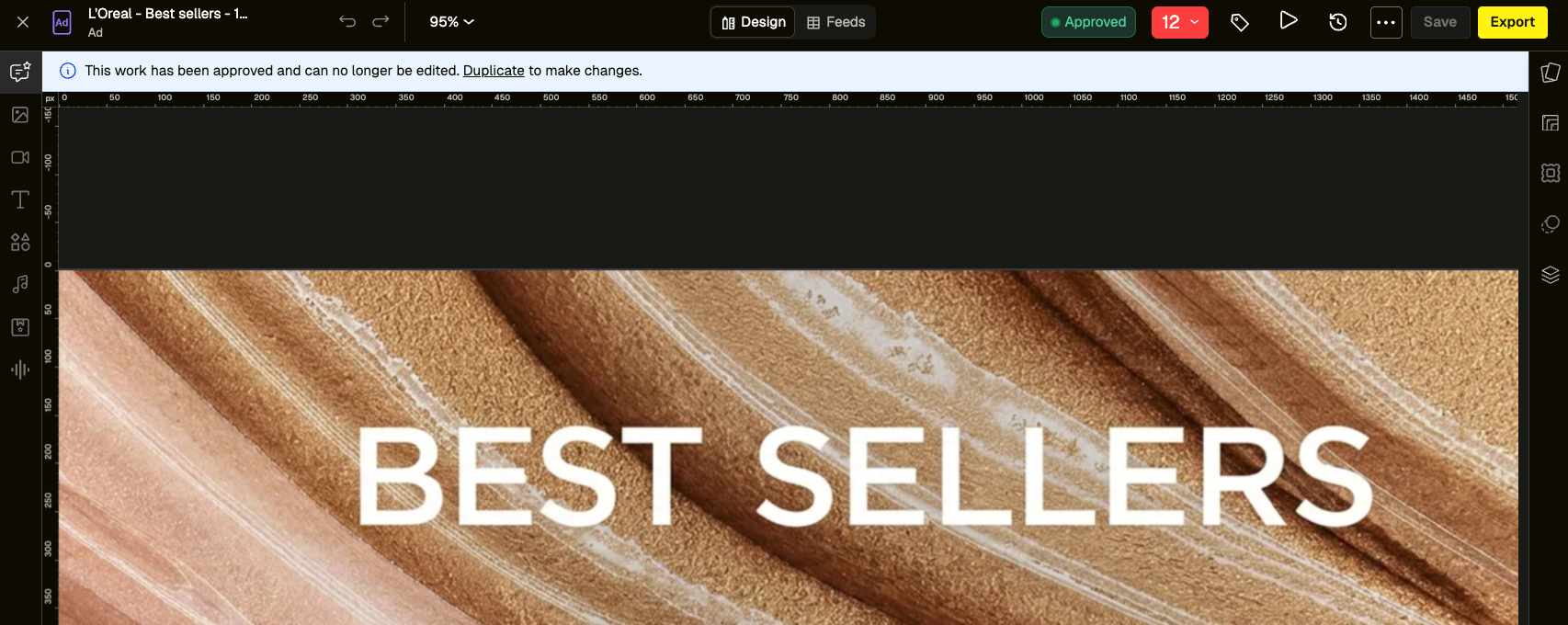
Locked Editing ensures that once a deliverable is approved, the linked work item can no longer be modified directly. Any further changes must be made on a duplicate, preserving the integrity of the approved version.
What’s new
- Approved work is now locked — Once a deliverable is approved, the linked work item becomes read-only to prevent further edits
- Duplicate to continue editing — Duplicate to continue editing
- Clear in-editor guidance — A banner explains why editing is disabled and directs users to duplicate instead
- Stable, exportable outputs — Approved work remains unchanged and can be confidently exported or published
- Feed-based variations remain editable - Variations generated from a feed are treated as separate work items and are not automatically approved or locked
Why it matters
- Protects approval integrity — Approved assets remain exactly as signed off
- Maintains consistency across outputs — Ensures exports and published assets match approved versions
- Improves trust and auditability — Clear separation between approved work and ongoing production
- Supports scalable workflows — Especially important for enterprise teams with strict approval and compliance requirements
What’s next
- Send work for review from Canvas — Ability to send work items for review from the Canvas, allowing approvals to be independently managed in the Canvas itself without a connected Brief.
Who it’s for
- Designers and production teams
- Clients and reviewers
- Project managers and delivery teams
What this unlocks
Locked Editing ensures that approval truly means final — giving teams confidence that once something is signed off, it stays consistent, traceable, and ready for use.
Give it a try and let us know what you think! 🚀
LOOM LINK
FAQ
Q: Is this approval flow different from the existing approval within the work folder? Are we gonna keep both running?
A: Currently approvals can only be setup from the brief itself, but from May 18th we'll allow that to happen from the Canvas without the need for a brief.
The platform team is working on a new 'Preview' option for assets/work items, to allow previewing an asset without any of the approval/comment options. This will be the natural replacement for the existing preview option.
We'll likely look at renaming our approval preview so not to confuse the two!
Q: The idea of approval and versions is only for Canvas, or will it apply to all work produced in Pencil and not connected to a brief?
Q: Can admins control whether approval is needed or not? For some clients, that could be an unnecessary step in the process. Will this connect to not being able to export without approval?
A: This is totally optional from the Work section. We released a permission as part of last weekend's release to control this with the intention of preventing exports of unapproved Work items on the canvas itself.
Update
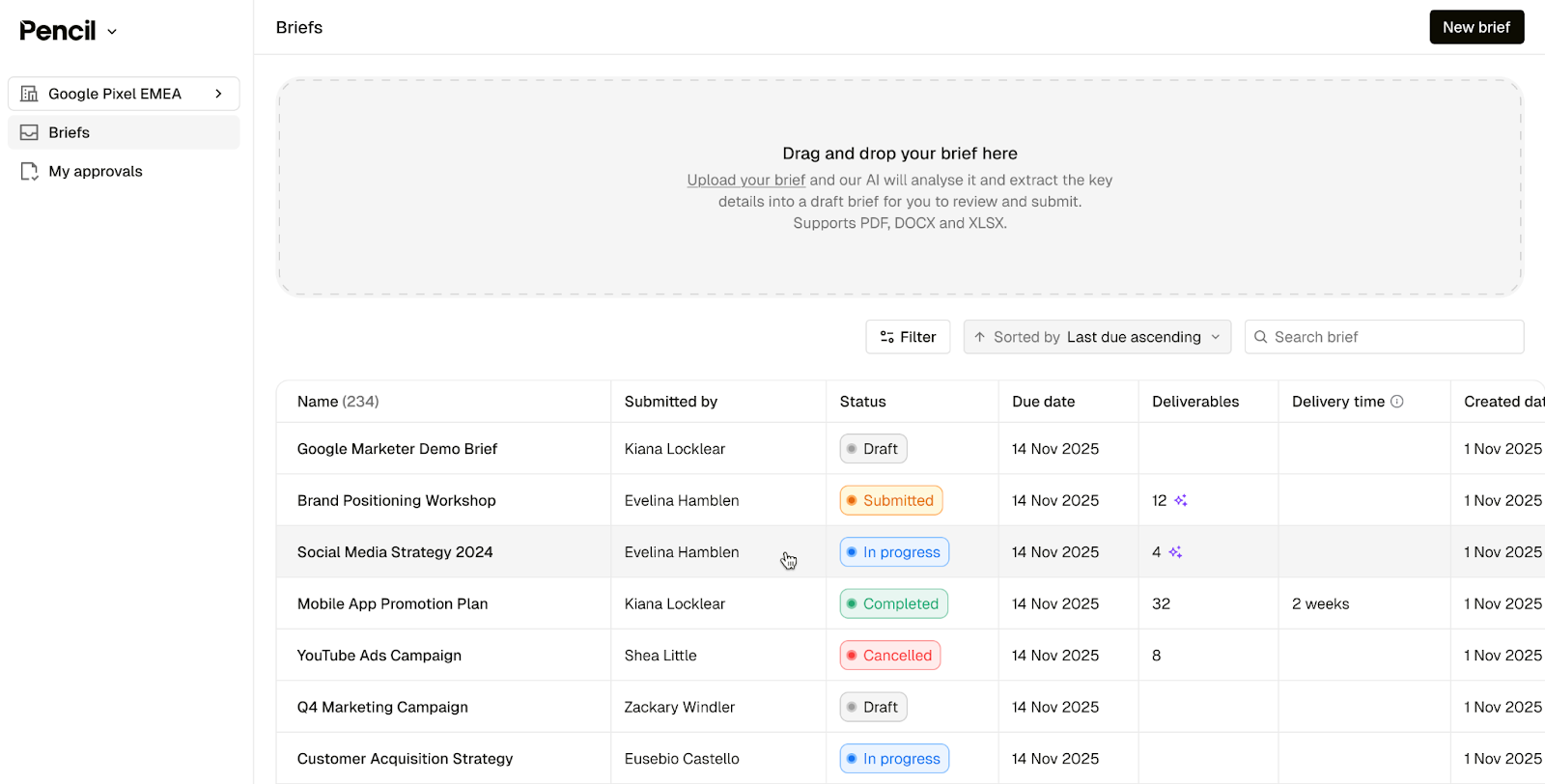
We’re introducing Brief Mode, a new way to bring creative briefs into Pencil and carry them through execution, review, and delivery.
For enterprise teams, briefs arrive through many different channels. While this works operationally, it creates a disconnect between briefing and execution, making it harder to maintain context, understand ownership, and track progress.
Brief Mode brings briefing into Pencil as the first step of the creative process.
By centralising how briefs are submitted and tying them directly to execution, Brief Mode reduces handoff risk, preserves context, and gives teams a single place to manage requests from intake through to delivery.
This creates a clearer, more reliable path from brief to execution, while laying the groundwork for more automated and agentic workflows in the future.
What’s new
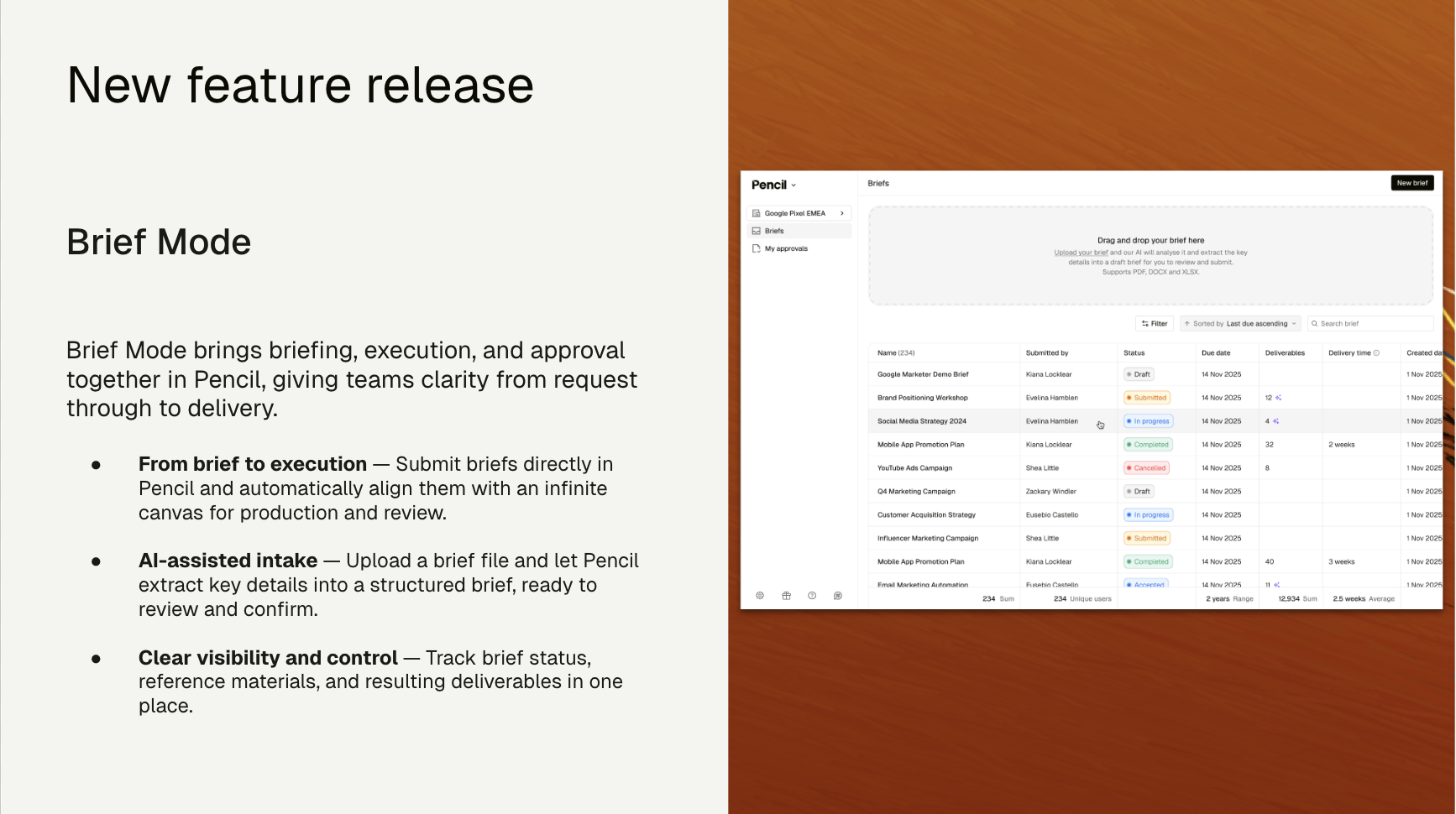
- Dedicated Brief Mode - A new space in Pencil to create, view, and manage briefs across their full lifecycle.
- AI-assisted brief ingestion - Upload a single briefing document and have AI extract and populate key details into a structured brief for review and submission.
- Structured brief template with guidance - A consistent brief format with clear fields, validation on submission, and helpful prompts to reduce back-and-forth.
- Structured brief template — A consistent format with clearly defined fields and validation on submission to ensure briefs are complete and ready to move forward.
- Seamless canvas alignment - When a brief is accepted, a canvas is automatically created and aligned with it—reference materials and deliverables stay in sync across both.
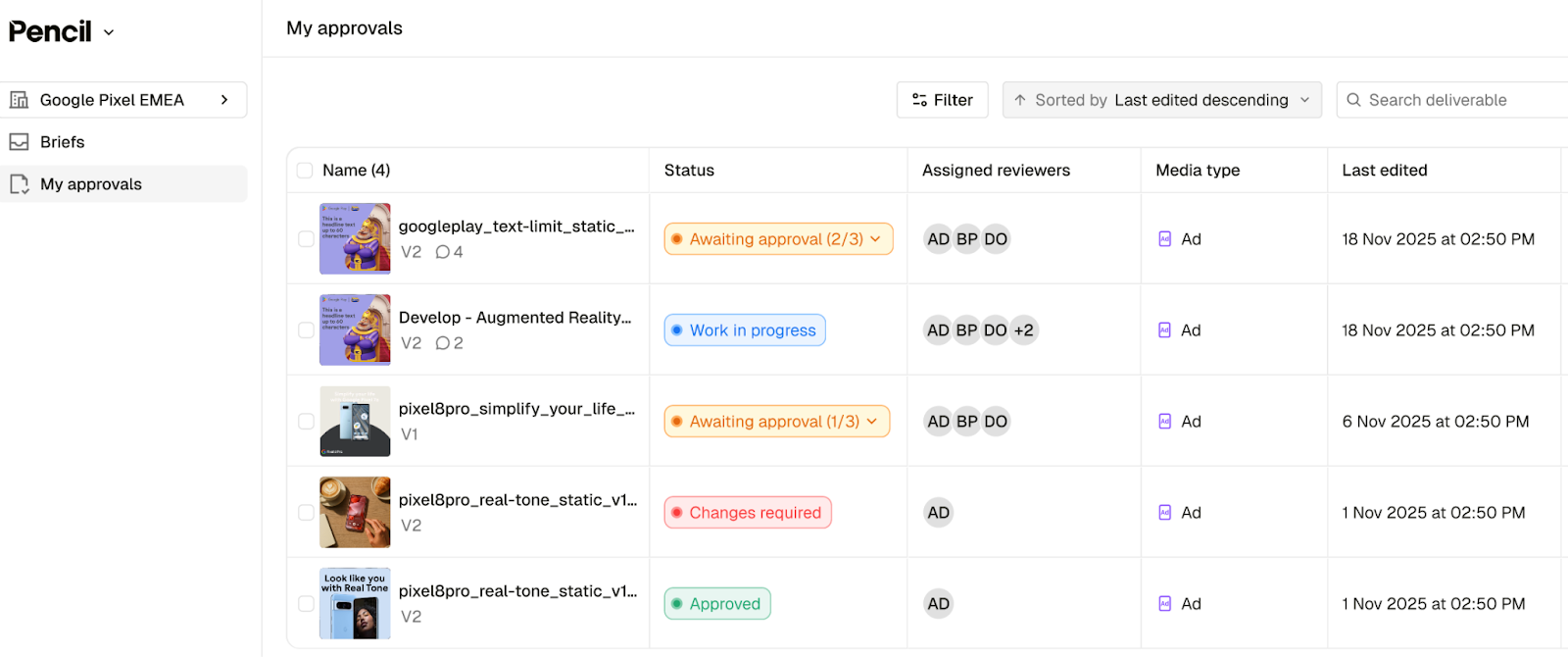
- Deliverables & My Approvals visibility - Deliverables tied to a brief are visible directly within Brief Mode, with a My Approvals view to manage all assigned reviews in one place.
Why it matters
- Brings briefing into Pencil - Clients can now submit managed service briefs directly in-platform, instead of relying on email, documents, or partner systems.
- Reduces friction at intake - AI transforms familiar briefing documents into structured inputs without forcing users to start from blank forms.
- Creates a shared source of truth - Briefs, reference materials, deliverables, and approvals are aligned end-to-end, improving clarity and trust for both clients and delivery teams.
- Connects briefing to execution - Brief Mode is the first step in tying client intent directly to canvases, workflows, and approvals—setting the foundation for deeper automation.
What’s next
- Richer briefing flexibility - Multiple brief templates, template configuration, and smarter AI template selection based on uploaded files.
- Deeper execution automation - Selecting agentic workflows to automatically execute parts of a brief and generate deliverables.
- Expanded visibility & reporting - Cross-workspace views and client-facing analytics on briefs, deliverables, and outcomes.
Who it’s for
- Strategists and marketers
- Brand and content teams
- Creative teams
- Legal and compliance teams
- Agencies and cross-functional teams
What this unlocks
Brief Mode brings briefing into Pencil as a single, consistent entry point—removing friction at intake and connecting briefs directly to execution and approvals, so teams can deliver the right work with greater clarity and confidence.
FAQ
Q: What are the limitations when uploading a brief (e.g., a single-page document or a one-slider)?
A: We allow document type files to be uploaded as source brief file (PDF, DOCX, XLXS).
Q: Beyond re-structing the information and creating a canvas with everything ready to go, does the tool provide a timeline for how long a brief should ideally take to complete in Pencil?
A: We don't give any explicit timelines for brief delivery given the variables, however we do show how long it takes from the brief being submitted to being completed, as a column in the brief list itself. This should help to indicate how long certain types of briefs tend to take.
Q: Will the “Structured Brief Template” live on the platform, or is it something users need to outline before uploading their briefs into Pencil?
A: A single structured brief template will live in the Pencil backend to begin with, but we are aiming to allow multiple tailored brief templates to be set up for each workspace, either in the backend or we surface them in the tool itself so users can create and configure them.
Q: Does Brief Mode also review the brief and identify what is missing from the files to deliver on the request? For example, the brief says 12 assets but brief mode only can see 6 links, will it flag errors in the submitted brief?
A: We don't do any AI-driven checks for missing or poor quality briefs, however that's definitely on the to-do list.
Q: If a team manages 12+ workspaces, they currently would have to use Brief Mode within each individual workspace. Is there a way to track the status of all specific workspaces from one central Brief Mode dashboard-esc thought?
A: We only allow viewing briefs in a single workspace to begin with, but we definitely will be looking to allow viewing briefs across multiple. Think this will be key for clients with a lot of business areas/workspaces.
Why We Built Brief Mode
Submitting a Brief: AI Extraction and References
From Brief Acceptance to Delivery
Comment (1)
Popular

Dive in
Related
Blog
Cursor Chat and Emoji Reactions in Canvas and Workflows
By Victoria Bryer • Jul 14th, 2026 • Views 23
Blog
Cursor Chat and Emoji Reactions in Canvas and Workflows
By Victoria Bryer • Jul 14th, 2026 • Views 23