

Editor Update: Alignment & Snapping

# Live
# New Feature
Launched May 21
May 28, 2026Manually positioning layers in the Editor used to mean a lot of nudging and eyeballing. We've rebuilt alignment and snapping from the ground up so that your designs can come together faster.
What's new?
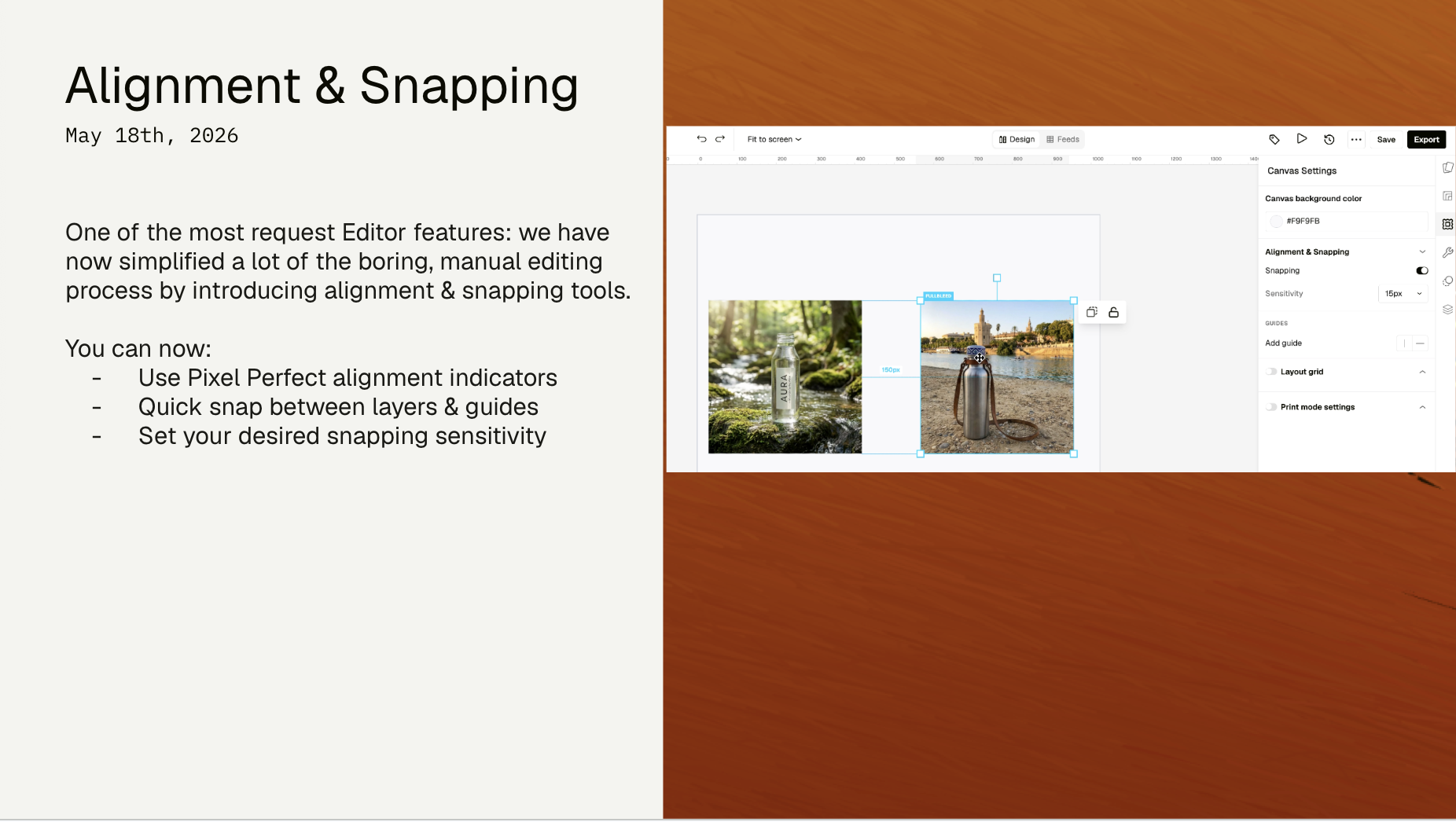
Elements snap naturally to nearby layers/guides as you drag them around the canvas. Pixel based distance guides also appear when you’re aligning layers to each other for maximum precision. This also allows for more specific, pixel perfect, distributed spacing between elements.
You can also finetune the sensitivity of the snapping - making it easier to get finer placements manually without the system taking over. Or, if you want to still retain freehand placements - a global snap toggle lets you turn the whole system off.
The details
- Layer-to-layer snapping. Drag any element and it snaps cleanly to the edges and centres of nearby layers.
- Auto alignment guides. Guides appear in the moment you need them and disappear when you don't.
- Snap to guides. Layers snap precisely to any guide you've created, and guides themselves lock to the canvas centre (horizontal, vertical, or both).
- Soft snapping. Snapping assists placement so that it feels magnetic, not sticky.
- Precision controls. Use arrow keys for 1px nudges, or Shift + arrow for 10px jumps. Why it matters This update addresses one of the most common pieces of feedback we have received. It makes Pencil feel easier to use, enables a higher level of pixel precision, and will speed up everyone’s workflow.
Comments (0)
Popular

Dive in