Over the past few months we have worked to include all of the features of the Image & Video Editors within the Ads editor. Therefore we are now deprecating those standalone Image & Video editors in order to provide a smoother end to end experience from Generation to Export - all directly within one, unified Ads Editor.
This change helps us consolidate generation, post-processing AI tools, and any manual edits required into a single workspace. It is now easier to generate, edit and build creatives without switching between editors.
Please see the video below for a quick walkthrough of the new view within Pencil.
All of the access points to the Image & Video Editors still exist - but you will be redirected to the appropriate view inside the Ads Editor. This includes by setting up a new work, opening an image in an agent chat, or elsewhere in the platform.
Generation in the Ads Editor
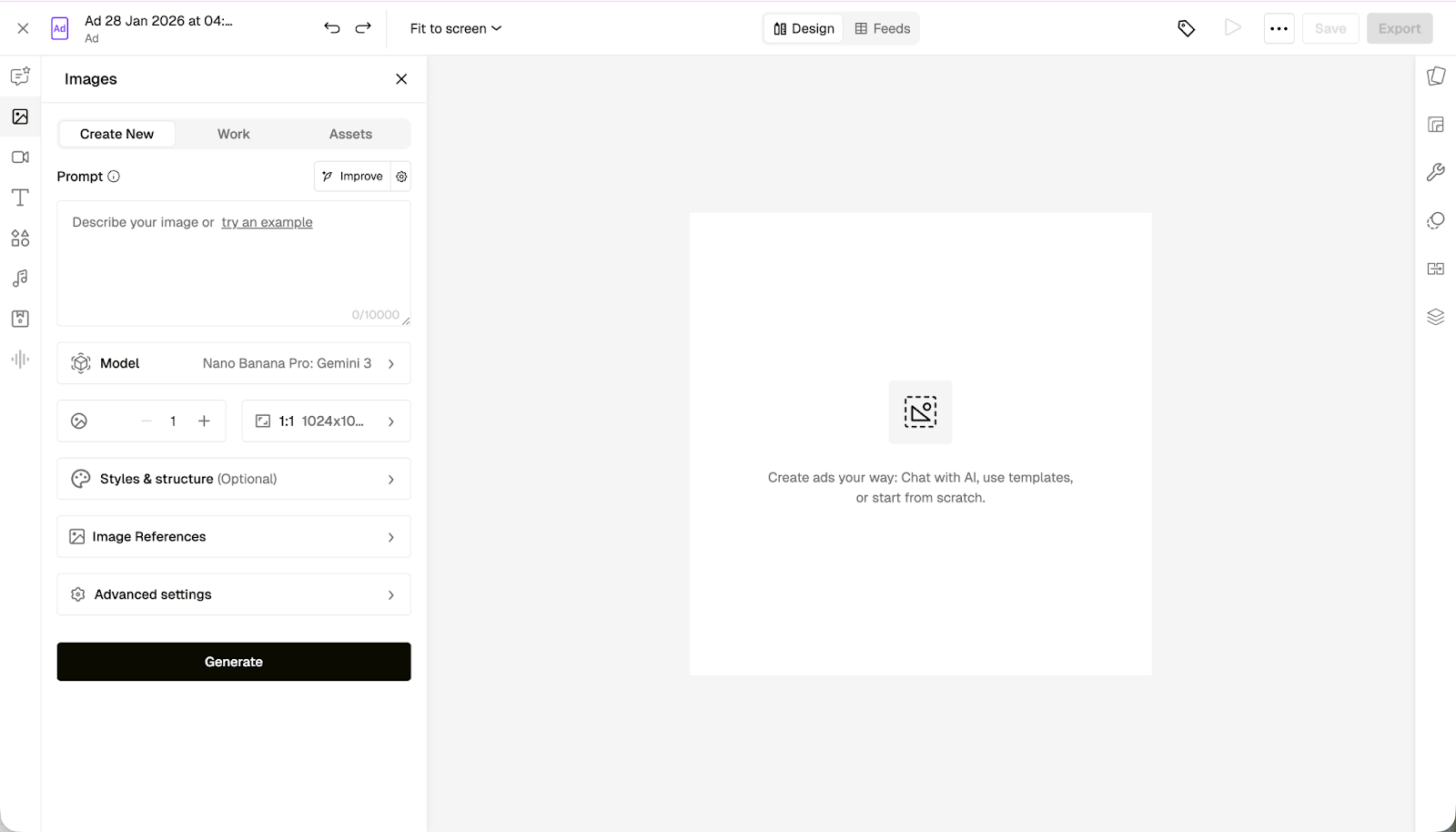
You can now generate images directly inside the Ads Editor using the Create New panel on the left-hand side.
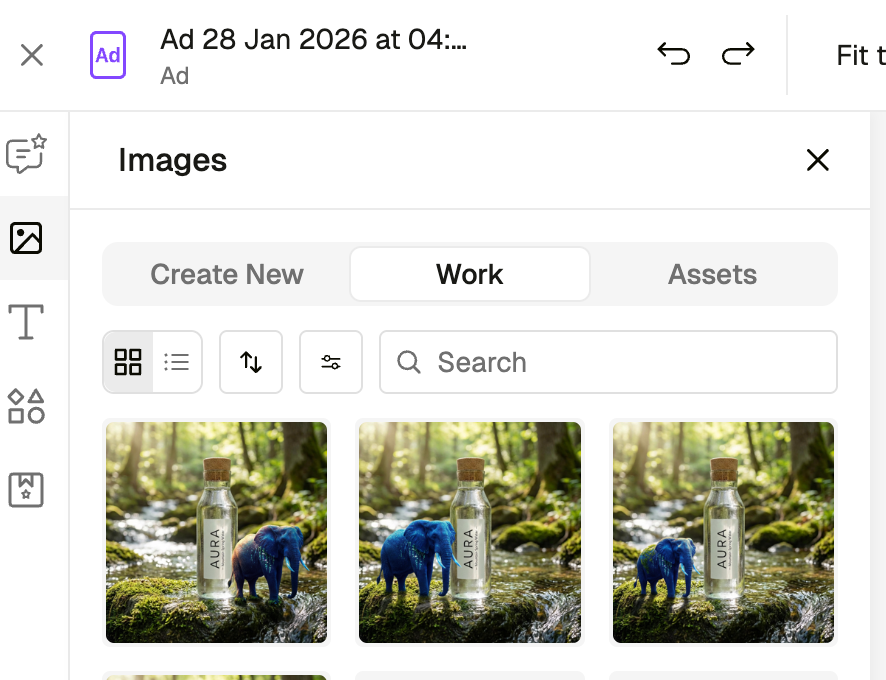
All generated images will be saved in the Work tab for that project. This includes all images generated in the Ads Editor workspace. Images created in Sheets or Feeds will not appear here.
Assets that you upload manually will still appear under the Assets tab.
If you apply a generated image to the canvas as your first action, the canvas will automatically inherit the size and aspect ratio of that image. For example, generating a 1080×1080 image will automatically set the format to 1080×1080.
Post-Generation Tools in the Ads Editor
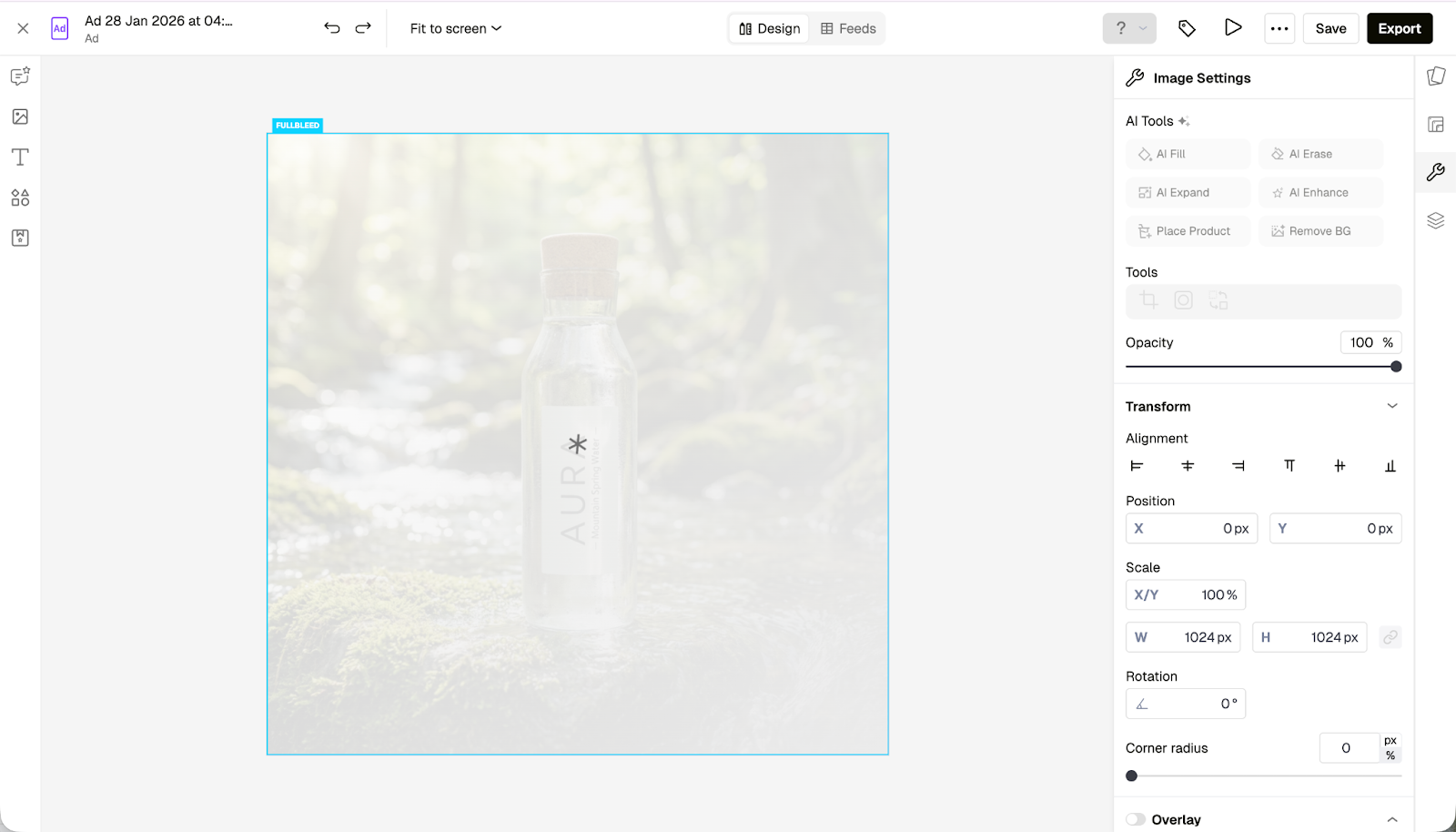
All image and video post-processing tools are now available within the Ads Editor. When you select a layer, the available AI tools will appear in the right-hand panel under Image/Video Settings. This includes:
AI Fill
AI Erase
AI Expand
Place product
AI Enhance (Static and Video)
Remove Background (Static and Video)
Image and Video Processing
While an image or video is processing, that layer cannot be edited. However, you can still continue editing and interacting with other layers in your design.
Video processing may take longer than image processing. While a layer is being processed, a loading indicator will appear directly on that layer.
Reviewing Processed Layers
If you trigger multiple processing actions at once, a notification will appear in the bottom-right corner of the editor when each action finishes.
You can click this notification to jump directly to the relevant layer, which makes it easier to review processed results while continuing to work on other parts of your design.
Choosing from Generated Variations
If you generate multiple variations when using post-processing tools, a small preview window will appear showing the different outputs.
You can easily switch between these variations and select the best option to apply to the canvas.
All generated variations will automatically be saved to the Work tab, so you can return to them later if needed.
Editor Availability
All generation and editing tools are currently available in the Ads Editor and Display Ads Editor.
Support for these tools in the Email Editor will follow in a future update. You can still add images via the Assets panel in the Email Editor.
For now, video generation will remain available in the Ads Editor only. Display and Email formats have different format and file size requirements, so we are holding off on enabling video generation there until we can support it properly.
_____________________________________________________________________________________
We are planning to deprecate the individual Image and Video Editors on March 16. However, don’t worry! We have already consolidated the individual features to the Ads Editor. So, all features in the image/video editor are already available in the Ads editor.
This includes:
All image and video models
All generation features
All Post processing tools across image and video
(Remove background, AI expand etc.)
We have put up this notice on the image / video editors every time a user accesses them:
What happens if you try to access the old ones after March?
Before March 1st we will change the routes into the Image/Video editor to the appropriate view in the Ads Editor. So if any user tries to access the old Image/Video editor then they will automatically be redirected to the new chat. That includes all New work options, or ‘open this image in…’ options in the agent flow.
Editor Types
Ads Editor
Display Ads Editor
Email Editor
Image Generation
And post- gen
Available now
Coming soon
Coming soon
Video Generation
Available now
Won’t do for now
Won’t do for now
All tools are available already in the Ads Editor, and we are bringing all of hte image & image post-gen tools to the Display Ads and Email Editor. We are holding off on implementing video gen for the Display/Email editors due to the nature of the formats & file size requirements for now.
We may consider adding these in future, however for now all existing functions will be possible in the Ads editor.
Here is a list of the features in the Ads editor that replace the image / video editor.
1. Generating in the Ads Editor
On the left hand side you can easily ‘Create new’ images with all of the relevant generation settings. You can prompt and use image references, as well as open up the advanced, model specific settings.
Generated imagery will be stored in the ‘work’ tab.
This includes all Images generated across the workspace within the ads editor - but not in sheets/feeds.
Only Assets uploaded to the Asset library will be viewable under the Assets tab.
Applying any image to the canvas as the first action will make the canvas inherit the size & aspect ratio of that image. So if you generate a 1080x1080 image, then the format will become 1080x1080.
2. Post-gen tools in the Ads Editor
2.1 How to find Post-gen tools
When you select any image, the AI tools will now appear in the right hand side, under Image Settings. All tools should be available to all image types - except for .png images with transparent backgrounds may have some issues in applying background. In this case we advise to apply the action you want, and then apply a remove background action.
2.2 Image/video Processing
Whilst you are processing an image - you cannot edit it in any other way.
However you can still edit / interact with other layers.
Working on videos will require longer processing
The loading spinner will appear on the layer that you are editing
2.3 Choose from Generated Variations
If you select a number of variations in post-processing tools then there will be a mini pop-up window listing out the variations. You can easily switch between these and choose the best one to go to the canvas. All of these variations will be saved to the ‘Work’ tab, though, so you can always change your mind later & use them elsewhere if needed.
2.4 Review processed images/videos
It may be the case that you apply many actions at once, and have a few things processing. In this case, there will be a pop up in the bottom right hand side that lets you click to select the relevant layers when they have finished processing - in case you have jumped to perform edits elsewhere.